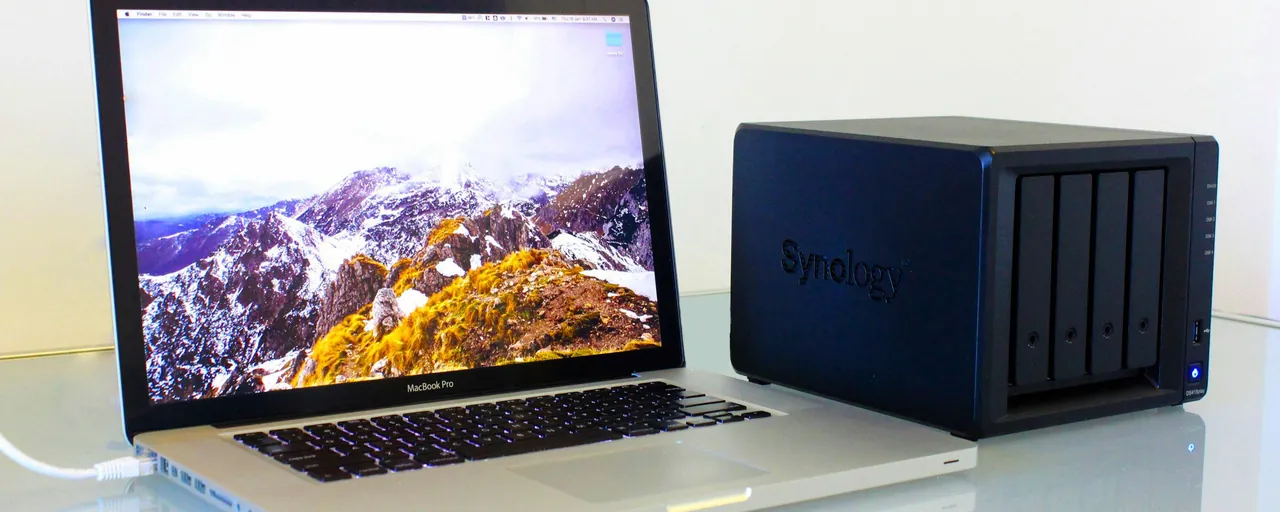

Setting up a NAS centralizes all your files for seamless management and access from any networked device. This guide walks through deployment, from drive installation to backup configuration. For hardware recommendations, see Best NAS Devices . For architecture and planning details, check the Complete Guide to NAS Devices. To evaluate costs and ROI, see Are NAS Devices Worth It?. For backup strategies, use the NAS Data Protection Guide.
For definitions or NAS terminology, see our NAS Glossary.
Quick Start Checklist

- Plan everything: List all devices to be connected (wired/wireless), and determine if remote access is required.
- Secure it from the start: Update firmware, set unique admin passwords, enable two-factor authentication, and remove unused accounts.
- Build storage: Select NAS-grade drives (WD Red, Seagate IronWolf Pro, Toshiba N300 Pro). Form redundant pools, activate snapshots, and keep at least 20% free space for reliability.
- Wire the network: Directly attach your NAS to router/
switch. If you run simultaneous high-bandwidth tasks, use 2.5 GbE or 10 GbE networking. - Power protection first: Use a UPS, set monitoring alerts, and configure off-site backups before uploading files.
- Label and reserve: Assign a device name, use network time sync, and reserve a static IP or DHCP reservation.
- Test functionality: Create user accounts, run backup/
restore tests, and verify access on all client devices.
What to Expect in Setup
Plan for one dedicated session to complete setup. You’ll assemble hardware, install your OS, establish storage pools and shared folders, and handle security basics. First large data transfers or cloud syncs might run overnight.
Gear You’ll Need
Start with a supported NAS enclosure and tray set. Recommended drives (2025):
Seagate IronWolf Pro 8TB: 7200 RPM, 256MB cache, CMR, 300-550TB/year workload, 5-year warranty
WD Red Pro 16TB: 7200 RPM, 512MB cache, CMR, helium-filled, 550TB/
year workload, 5-year warranty Toshiba N300 16TB: 7200 RPM, 512MB cache, CMR, 180TB/
year workload, 3-year warranty Seagate IronWolf Pro 24TB (2-pack): Latest HAMR technology, 550TB/
year per drive, 5-year warranty
Only buy NAS-grade CMR drives. Avoid SMR drives, as they perform poorly in RAID and heavy-write environments. Double check compatibility lists, as some NAS brands restrict or lock features for non-approved drives.
For networking, use at least gigabit Ethernet. Cat 5e works for 1/2.5 GbE; Cat 6a supports 10 GbE up to 100m; Cat 6 covers 10 GbE for distances up to 55m.
Have a PC on the same network for setup, a screwdriver, extra cables, and a USB-connected UPS for added protection. For example, the CyberPower CP1500PFCLCD (1500VA/1000W, pure sine wave, 12 outlets, USB/DB9 monitoring) delivers clean power output and USB shutdown signaling for safe operation during power outages.
Plan your RAID level, shares, user accounts, and backup destinations. Options: cloud (Backblaze B2, Wasabi), secondary NAS, or rotating offline drives.
Planning Your Storage Layout
Stick to CMR NAS drives for longevity and smooth RAID rebuilds. Confirm compatibility and keep a cold spare if uptime matters.
Leave headroom: Maintain under 80% pool utilization for best performance (especially ZFS/Btrfs).
RAID Choices
Use the following table as a 2025 reference:
| RAID Level | Min Drives | Usable Capacity | Failure Protection | Best Use |
|---|---|---|---|---|
| RAID 1 (Mirror) | 2 | 50% | 1 drive | Documents, photos |
| RAID 5 | 3 | ~67–75% | 1 drive | Balanced speed/ |
| RAID 6 (RAIDZ2) | 4 | ~50–67% | 2 drives | Large, critical pools |
| RAID 10 | 4 | 50% | 1 per mirror set | High IOPS, mixed workloads |
| Synology SHR | 2 | varies | 1 drive | Mixed sizes, scalable expansion |
| Synology SHR-2 | 4 | varies | 2 drives | Small teams, business use |
SHR or ZFS platforms ease upgrades. Note: Rebuilding traditional RAID pools can take hours to days depending on pool size. Always back up.
RAID protects against drive failure but not accidental deletion, ransomware, or disaster. Backups are essential.
Networking
Reserve a static IP or set DHCP reservation for consistency. Consider a recognizable DNS label where possible.
Upgrade to 2.5 GbE for most modern homes (handles 4K streaming, multiuser backup, and isn’t expensive). 10 GbE makes sense only for large production tasks: switches (~$200–400), NICs ($100–200 each). Use SMB Multichannel if your NAS supports it for higher throughput.
For secure access, never expose admin/
Jumbo frames: Only enable if all devices on your network run identical MTU settings.
Assembly
Label drives and install with the right screws; insert in order. Attach NAS to router/
Size your UPS: Add total device wattage, multiply by 1.25 for minimum VA, then factor in 20% more for longevity. Example: NAS (60W) + router (20W) + switch (20W) = 100W × 1.25 = 125VA × 1.2 = 150VA. Most home NAS setups land in the 600–1000VA range.
Power up and watch for LED readiness.
Operating System Installation
Detect your NAS with vendor tools:
- Synology: find.synology.com, Synology Assistant
- QNAP: Qfinder Pro
- UGREEN: UGOS Discovery
- TrueNAS: check router’s device/IP list
Run the wizard, install OS, set a strong admin password. Disable default admin/
Safeguard your static IP, admin credentials, and recovery info in a password manager. Backup these securely.
Main Setup Steps
Storage Pools: Create general-use pools with RAID 5/SHR, critical/
Shared Folders & Permissions: Organize by media, docs, and backup. Turn on recycle bins, tightly control group access, and don’t use admin logins for day-to-day operations.
Client Connection:
- Windows: File Explorer,
\\nas-name\share - macOS: Finder > Go > Connect to Server
smb://nas-name/share - Linux: Mount over CIFS/NFS
Run a trial upload to confirm access before moving all data.
Enable Backups: Snapshots protect critical folders (hourly/daily/weekly rotation). Off-site solutions cover cloud, remote NAS, or external drives. Always practice the “3-2-1” rule: three copies, two types of media, one off-site. Where possible, use immutable backup features.
Always test restores early. Restore one snapshot and one off-site backup (USB/cloud) during setup. Schedule quarterly restore tests for peace of mind.
Off-Site Backup Options
- Cloud object storage: Backblaze B2, Wasabi (fast, encrypted, but watch egress costs for big restores)
- Secondary NAS: Provides fast, easy replication if maintained properly
- Rotating external USB drives: Inexpensive, effective; unplug and periodically relocate offsite
Leverage vendor backup tools: Hyper Backup (Synology), Hybrid Backup Sync (QNAP), UGOS Cloud Sync, TrueNAS Cloud Sync. Activate encryption, retention, and automation.
Security & Remote Access
Use unique logins and never reuse admin for routine tasks. Set OS/app auto-updates or reminders monthly. Restrict admin access to LAN or VPN. Disable unused apps/
Connect your UPS; size it using the directions above.
Remote Access Tips
Never forward admin/
Mesh VPNs like Tailscale are ideal for secure anywhere access. Vendor relay services are okay for simple sharing as long as admin access remains local.
Optional Features
Install media servers (Plex, Jellyfin, Emby). Hardware-accelerated transcoding works best with Intel Quick Sync or a supported GPU. Store metadata/
Containers and lightweight VMs support apps like Home Assistant or Pi-hole. Store their volumes on SSDs, backup separately, and keep version histories for easy recovery.
Regular Maintenance
- Weekly: Confirm snapshot/
backup success, check alerts, monitor drive temps (30–45°C) - Monthly: Patch OS/apps, SMART scan, review free storage, test a login
- Quarterly: Restore from key backups, run ZFS/Btrfs scrubs, audit user/
permissions - Annually: Review drive warranties, rotate cold spares, perform a full restore
Mistakes to Avoid
- Weak passwords: Always enforce strong ones, with 2FA
- Skipping RAID: Any single drive failure = data loss
- Exposing services: Don’t port-forward admin or share protocols; VPN only
- No off-site backups: Redundancy is lost without separate copies
- Untested restores: Backups are pointless unless recoverable
- Using desktop HDDs: Only NAS-rated drives are built for prolonged workload
- Overfilled pools: Always keep 20% space open
- Mixed MTU: Use jumbo frames only with matched devices
Troubleshooting
- NAS not found: Check cables, link lights, and IP address; reboot if needed
- Slow transfers: Test speeds, disable background syncing, try SMB Multichannel
- Permission denied: Review group settings, clear cache/
credentials - Drive warning: Backup ASAP, swap using hot-swap, rebuild RAID before heavy usage
- Backup errors: Check credentials, space, and logs for issues
Common FAQs
- Setup time? Most setups finish in a few hours; large data transfers may run overnight.
- Mixing drive sizes? Yes for SHR/ZFS; RAID 5/6 prefers matched drives.
- Do I need a UPS? Absolutely. A UPS safeguards data integrity during power events.
- When to swap drives? Monitor SMART status monthly; replace at first sign of failure or at warranty expiration.
- Is RAID a full backup? No. Always keep snapshots and off-site backups.
Next Steps
Move a few files and confirm user access. Test backup/
If you want additional reading, check our Complete Guide to NAS Devices, Best NAS Devices, Are NAS Devices Worth It?, and the NAS Data Protection Guide.